

ByTheWeb GEO can be used entirely manually, but when the companion ByTheWeb AI plugin is installed and connected, you can also generate selected GEO and SEO fields with AI.
Fix with AI uses the existing content of the post or page as the source, lets you choose which supported fields to generate, shows the credit cost before generation, and returns the generated values for your review before you save them.
For the site-wide scoring and issue workflow, see SEO & GEO Dashboard.
What Do I Need to Use Fix with AI?
To use the AI generation tools inside ByTheWeb GEO, you need:
- ByTheWeb GEO active.
- The companion ByTheWeb AI plugin active.
- A connected ByTheWeb AI API Key.
- Enough available AI credits for the fields you choose to generate.
- Enough existing post or page content for the AI to analyze.
The current Fix with AI process requires at least 50 characters of post content before an AI generation request can be made.
Using the regular ByTheWeb GEO fields manually does not require ByTheWeb AI or AI credits.
What Can Fix with AI Generate?
The supported GEO fields are:
Short Answer (The Bottom Line)
A short, direct answer describing the main purpose or answer of the page.
AI Summary (Key Facts)
A concise collection of important facts based on the page content.
FAQ
Relevant FAQ questions and answers based on the content.
When ByTheWeb GEO is also managing the site’s classic SEO layer, Fix with AI can additionally generate:
SEO Title
Meta Description
Other GEO or SEO settings are not automatically generated by this Fix with AI workflow.
For example, it does not automatically configure Canonical URLs, Robots settings, Page Type, Schema settings, Business Locations, Services, Social Images, or Breadcrumb settings.
Where Can I Use Fix with AI?
There are two main places to use the feature.
Inside the WordPress post editor
The ByTheWeb GEO panel contains an:
Auto-Fix GEO & SEO Issues with AI
section.
When ByTheWeb AI is active, you can open the generation interface with:
Fix All with AI
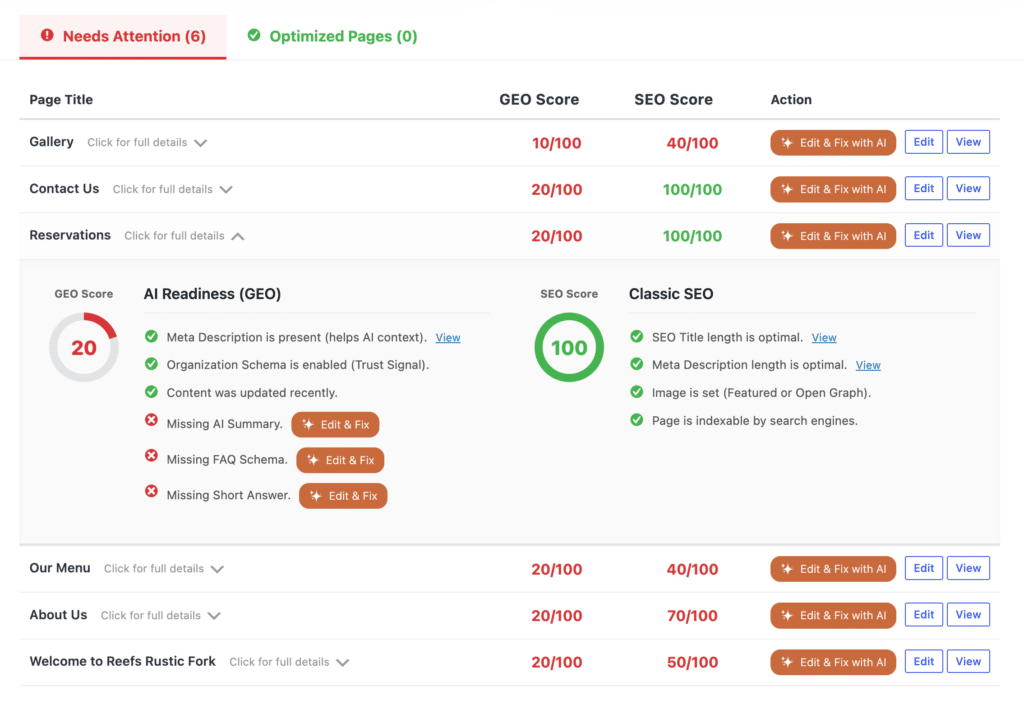
You can also open the detailed GEO or SEO score and use the AI tools from there.
From the Site-wide GEO Dashboard
Pages that can be edited with the AI workflow include an:
Edit & Fix with AI
action.
This opens the selected post’s supported fields without requiring you to leave the Dashboard first.
What Happens If ByTheWeb AI Is Not Installed?
If ByTheWeb GEO detects that the companion AI plugin is not active, the AI generation controls are replaced with an option to install:
ByTheWeb AI
Your manual ByTheWeb GEO fields remain available.
Installing the AI plugin is therefore optional unless you want to use AI-powered generation.
Choosing Which Fields to Generate
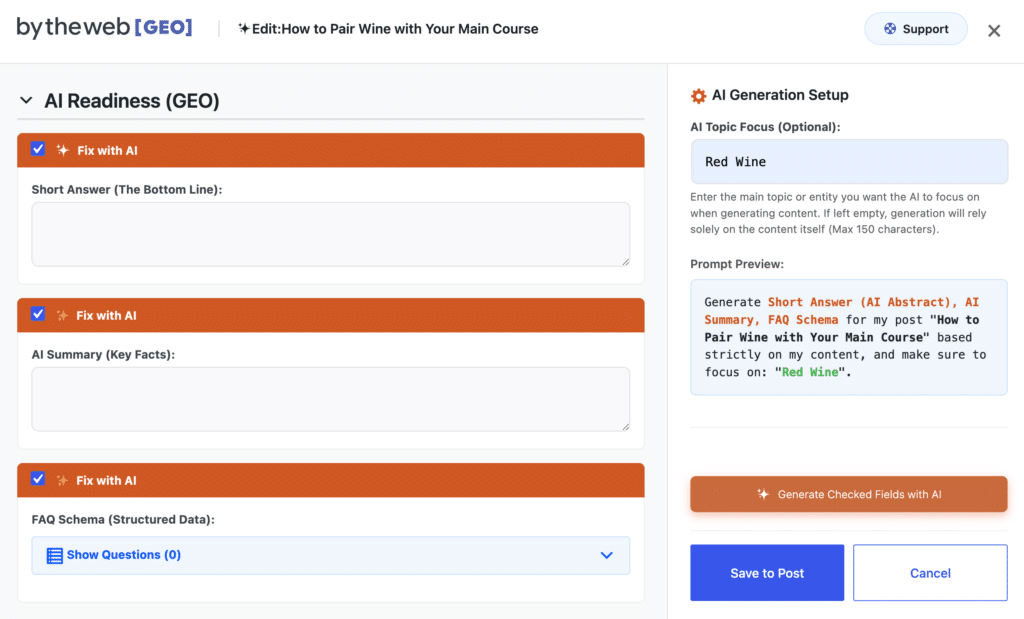
Opening the Fix with AI interface does not mean that every field must be regenerated.
Each supported AI field has its own Fix with AI checkbox.
Fields currently identified as needing attention can be preselected when you open the relevant workflow.
You can review the selections and:
- Keep the fields you want generated.
- Uncheck fields you do not want changed.
- Select additional supported fields when appropriate.
Only the selected fields are included in that AI generation request.
AI Topic Focus
The generation interface includes:
AI Topic Focus (Optional)
You can enter the main topic or entity you want the generated content to focus on.
The field accepts up to 150 characters.
For example:
WordPress accessibility services
or:
Enterprise website migration
If you leave AI Topic Focus empty, the generation request relies on the existing page or post content without an additional topic focus.
Prompt Preview
The Fix with AI interface also includes a Prompt Preview.
It shows the selected generation fields, the current post, and the optional AI Topic Focus so you can understand the basic context that will be used before starting generation.
The preview updates according to the options selected in the interface.
Review the Credit Cost Before Generation
Each AI-generatable field displays its current credit cost.
As you select or deselect fields, ByTheWeb GEO calculates the:
Total Cost
The exact cost is retrieved from the ByTheWeb AI pricing configuration, so it should be reviewed in the interface rather than treated as a permanently fixed amount.
Before a paid AI generation request begins, ByTheWeb GEO displays a confirmation showing the total credit cost and asks you to approve the action.
No generation request is started from that confirmation until you approve it.
What Data Is Sent for AI Generation?
Fix with AI is an external AI feature.
When you approve generation, the text content of the current post or page is sent to ByTheWeb Cloud for processing.
The request also identifies:
- The fields you selected for generation.
- The optional AI Topic Focus, if provided.
- Relevant existing field data.
- Existing FAQ questions when FAQ generation is requested.
- The connected API Key and website domain for authentication.
The content is processed through the ByTheWeb AI service to generate the selected fields.
For more information about external processing, see the ByTheWeb Privacy Policy and Terms of Service.
Fix with AI Does Not Rewrite the Main Page Content
The GEO Fix with AI workflow uses your existing page or post content as input.
It generates the selected GEO or SEO fields.
It does not replace or rewrite the main WordPress post content as part of this workflow.
What Happens After Generation?
Generated content is first returned to the ByTheWeb GEO interface.
It is not intended to bypass your review.
You can review and edit the generated values before applying them permanently.
For generated Short Answers, AI Summaries, SEO Titles, and Meta Descriptions, the generated value is placed into the corresponding field.
For FAQ generation, generated questions and answers are added to the FAQ editing interface so they can be reviewed together with the existing FAQ items.
Saving from the Post Editor
When Fix with AI is used from the WordPress post editor, the generated values are placed into the ByTheWeb GEO fields.
They are not permanently saved merely because AI generation finished.
After reviewing the result, use the normal WordPress:
Save
Update
or:
Publish
action to save the changes permanently.
ByTheWeb GEO displays an unsaved-changes notice after generated values have been applied to the fields.
Saving from the GEO Dashboard
When using Edit & Fix with AI from the Site-wide GEO Dashboard, generated values are also shown for review first.
After generation, click:
Save to Post
to apply the reviewed values to the WordPress post.
The Dashboard then recalculates the applicable GEO and SEO scores using the saved data.
What Happens to Existing FAQ Questions?
FAQ generation does not automatically remove the FAQ questions already present in the editor.
Existing questions are included in the generation context, and newly generated FAQ items are returned to the FAQ editing interface.
Review the final list before saving.
You can edit or remove individual questions manually when needed.
What Happens with Yoast SEO or Rank Math SEO?
ByTheWeb GEO respects the active supported SEO provider.
When Yoast SEO or Rank Math SEO is managing the site’s classic SEO layer, ByTheWeb GEO does not expose its overlapping SEO Title and Meta Description fields for editing or AI generation.
The external SEO provider remains responsible for those SEO fields.
ByTheWeb GEO continues to manage its non-overlapping GEO fields, including:
- Short Answer
- AI Summary
- FAQ Schema
Those supported GEO fields can still use Fix with AI when ByTheWeb AI is connected.
For general provider behavior, see Requirements & Compatibility.
Fix with AI vs. Manual Editing
AI generation is optional.
Every supported ByTheWeb GEO field can still be reviewed and edited manually without spending AI credits.
A typical workflow is:
Manual
Open the field, write the value yourself, and save the post.
With ByTheWeb AI
Select the field, review the displayed credit cost, approve AI generation, review the generated result, make any edits you want, and save it.
The final field remains normal WordPress data regardless of whether its content was entered manually or generated with AI.
Does Fix with AI Guarantee a Higher Score?
Generating a missing field can resolve the corresponding issue when the generated result satisfies the applicable ByTheWeb GEO check.
However, Fix with AI does not guarantee a particular final score.
Some Dashboard recommendations cannot be solved by AI-generated fields.
For example, issues involving page structure, indexing, content length, images, links, freshness, or site-level settings may require manual changes elsewhere in WordPress.
Review the Dashboard after saving to see which items still need attention.
Does a Higher GEO Score Guarantee AI Visibility?
No.
ByTheWeb GEO scores are internal optimization indicators designed to help identify whether supported SEO and GEO elements are present and properly configured.
Neither the score nor the use of Fix with AI guarantees rankings, citations, inclusion, recommendations, or visibility in an external search engine or AI platform.
Troubleshooting
I see “Install ByTheWeb AI” instead of Fix with AI
The companion ByTheWeb AI plugin is not currently active. Install and activate it to enable the AI generation integration.
I receive “No AI API key found”
Connect a valid ByTheWeb AI API Key before using the feature.
I receive “Not enough content in the post”
The current generation workflow requires at least 50 characters of post content. Add meaningful content to the page or post and try again.
Generate is not available
Make sure at least one supported Fix with AI field is selected.
I generated content but it disappeared after leaving the page
Generated values must still be saved. In the post editor, use WordPress Save, Update, or Publish. From the Site-wide GEO Dashboard, use Save to Post.
I cannot generate an SEO Title or Meta Description
Check whether Yoast SEO or Rank Math SEO is active. When a supported external SEO provider owns those fields, ByTheWeb GEO intentionally does not expose competing SEO fields.
My page still has issues after Fix with AI
Not every Dashboard issue has an AI-generated solution. Review the remaining feedback to determine whether the page needs a manual content, technical, image, structure, or site-setting change.
Recommended Workflow
- Review the page in the SEO & GEO Dashboard.
- Open Edit & Fix with AI, or edit the post and open the ByTheWeb GEO panel.
- Review the fields currently marked as needing attention.
- Select only the fields you want AI to generate.
- Add an optional AI Topic Focus when useful.
- Review the displayed total credit cost.
- Approve the AI generation request.
- Review every generated value.
- Edit the result manually if needed.
- Save the changes to the WordPress post.
- Review the updated GEO or SEO feedback and handle any remaining manual issues.